Online seller
A product photograph looks soft when displayed larger.
Compare edge clarity with the original before using it in a listing. For a new scene rather than a clearer source photo, see upsampler ai image generator.
Image clarity
An image enhancer aims to make a soft or undersized picture easier to view. Upsampler can help you frame the task, but judge any result against the original: sharper-looking pixels do not necessarily reveal what the camera captured.
Start by identifying the defect. An image enhancer can address apparent softness, small display size or uneven contrast, but those are different jobs.
A product photograph looks soft when displayed larger.
Compare edge clarity with the original before using it in a listing. For a new scene rather than a clearer source photo, see upsampler ai image generator.
A scanned caption has faint strokes and uneven contrast.
Check whether visible letters become easier to read without treating guessed characters as a transcription. For manual corrections, see upsampler image editor.
A small reference illustration needs to be presented at a larger size.
Inspect outlines and texture at the intended display size. If the concept itself needs replacing, explore upsampler ai image generator.
An older portrait has low contrast around a face.
Look for improved visibility without assuming facial details are historically accurate. For deliberate, localized changes, see upsampler image editor.
Treat enhancement as an evaluation workflow, not proof that lost information has been recovered.
Keep the best available original. Note whether the issue is low resolution, motion blur, compression or poor lighting; an image enhancer will not address each in the same way.
Specify important text, facial features or product markings. Ask for restrained changes, then check which enhancement options are actually available after handoff.
View the original and result side by side. Zoom into lettering, hair and straight edges to catch halos, invented texture or altered shapes before choosing an image.
A polished image is not automatically a faithful one. These limits matter most when the source will be used as evidence.
An image enhancer cannot verify words hidden by blur or objects outside the frame. A plausible-looking detail may be a guess.
What to do instead
Consult another scan, photograph or written source before transcribing uncertain content.
Compression blocks, grain and edge halos may become more noticeable as apparent detail increases.
What to do instead
Compare at normal viewing size as well as close up; keep the original if artifacts distract.
Enhancement starts with existing content. It is not a reliable way to invent a missing angle, replace a subject or reconstruct an unseen background.
What to do instead
Use a generation workflow for a new concept and label it as newly created.

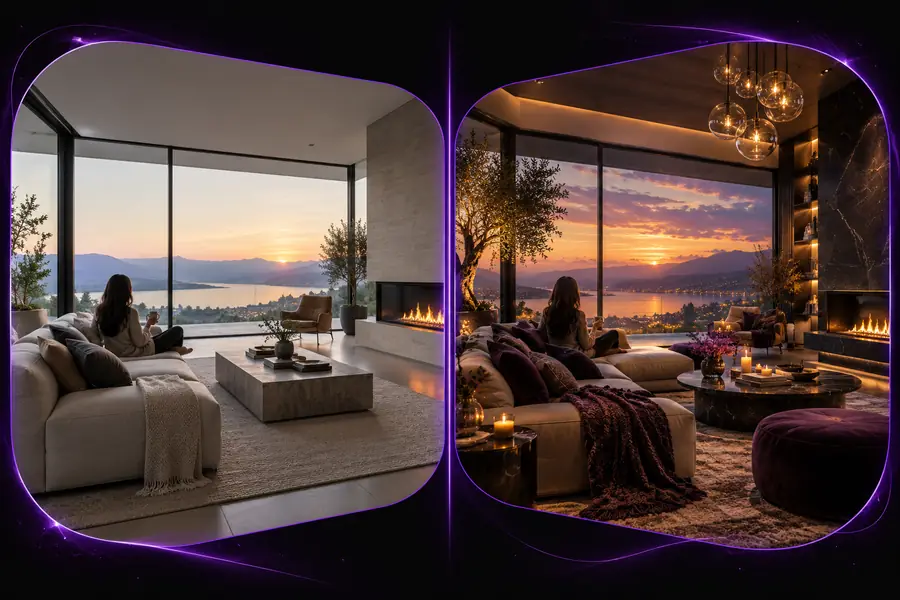
This illustrative pair shows a visual distinction, not a verified recovery of the original letters. Check source text independently when accuracy matters.
Softer textClearer-looking textChoose the task before judging the output. An upsampler image enhancer should be assessed for fidelity; a newly generated image should be assessed for how well it serves a fresh brief.
| Enhance an existing image | Create a new image | |
|---|---|---|
| Starting point | An existing photograph, scan or illustration | A description or creative reference |
| Primary aim | Improve the appearance of existing content | Make a different visual |
| Text in source | Must be checked against the original | Must be checked against the requested wording |
| Identity and objects | Should remain consistent with the source | May be designed for the brief |
| Best comparison | Before and after at the same display size | Result against the creative brief |
| Main risk | Plausible but inaccurate added detail | A result that misses the intended subject |
Describe what needs to look clearer, preserve your original and compare any result before relying on it. Upsampler helps you approach enhancement as a visual check rather than a guarantee of recovered detail.
An image enhancer is intended to make an existing picture look clearer, often by improving apparent detail, contrast or display size. The exact controls available depend on the tool you use after handoff. Compare the result with the source rather than assuming newly visible detail was present in the original.
Upsampler can help you frame a clarity request, but no enhancement should be treated as proof of what unreadable text says. Sharper-looking letters may still be inaccurate. Check against another copy or a trusted transcription when the wording matters.
It may improve how a small photo appears at a larger size, but the source still sets limits on faithful detail. Inspect the result at the intended print size, especially around faces and straight edges. A clearer preview does not guarantee a satisfactory print.
No. Enhancement focuses on the appearance of an existing image, while editing can make targeted changes and generation creates a new visual. If preserving the source is important, review any changed feature closely.