Before you prompt

Plan an Image with the Upsampler AI Image Generator

Before trying the upsampler ai image generator, decide what the picture must show and where you plan to use it. A clear subject, setting and visual style give you a better starting prompt than a list of vague adjectives. Have any reference image ready if the workflow you choose accepts one; a text prompt alone does not require an upload.

Free to start · no signup
Upsampler landing-page visual

One full run-through

Here is a practical way to take one illustration idea from a first prompt to a decision about the result.

  1. 1

    Write the first prompt

    Start with a small turquoise bookshop on a rainy evening. Add the street-level viewpoint, warm light inside and an editorial illustration style. Keep these details together so the intended scene is easy to evaluate.

  2. 2

    Follow the prompt handoff

    Use the action above to continue to the destination. Check the controls and terms shown there before submitting: this page does not establish which models, image sizes, upload types or output formats are available.

  3. 3

    Review and revise

    Look first for the shop, rain, viewpoint and lighting. If the scene misses one element, change that part of the prompt rather than rewriting everything. Check lettering, faces and small objects closely before using the result.

What fails

A polished preview is not enough; inspect whether the result actually follows the brief.

Upsampler feature illustration

Step 1

A scene that misses the subject

A long prompt can bury its most important instruction. If the bookshop becomes a generic city street, put the shop at the beginning and retain only the setting details that help identify it. Treat the pictured example as visual context, not a promise that a particular prompt will reproduce it.

  • Name the main subject before describing the atmosphere.
  • Keep the viewpoint explicit when composition matters.
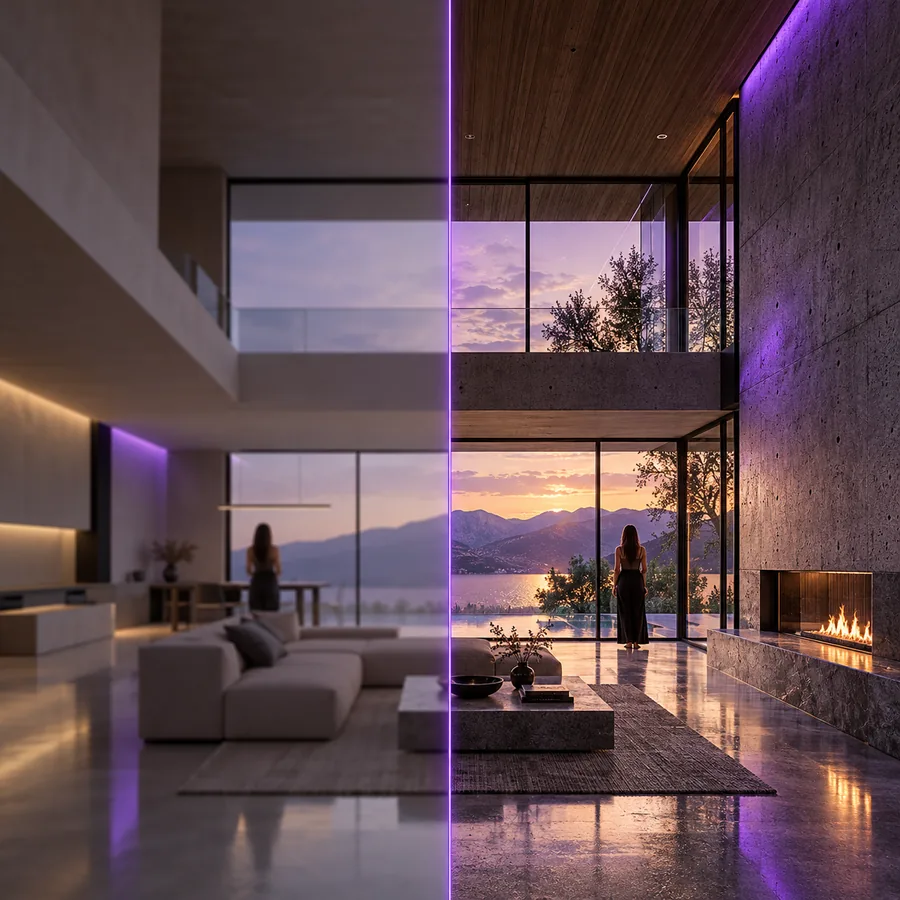
Upsampler feature scene for reviewing image details

Step 2

Details that look convincing at first glance

Generated images can appear coherent at thumbnail size while signs, hands, repeated objects or architectural edges break down when enlarged. For a poster or client mockup, inspect the areas that carry meaning at the size the image will actually be shown. Revise the prompt for composition; use an appropriate editing workflow for a local correction.

  • Zoom in on lettering and recognizable objects.
  • Check whether the focal point remains clear at final display size.
Upsampler feature image showing a visual composition

Step 3

An output that cannot serve the brief

Even an attractive picture may be unusable if its framing leaves no room for a headline or its style conflicts with the project. State the intended placement in the prompt, such as space above the storefront for a title. Before committing to a design, verify the destination’s current export choices and usage terms rather than assuming a particular resolution or license.

  • Describe where text or other design elements must fit.
  • Confirm available output options at the destination.

Its own FAQ

Start with the subject, then specify the setting, viewpoint and desired style. Include constraints that would make the result unusable if missed, such as space for a headline. Revise one missing detail at a time after reviewing an output.

No. Generation starts with a description of the image you want, while editing starts with an existing picture and a requested change. If you already like the composition, an editing workflow may be more direct.

That depends on the input choices available at the destination when you visit. Keep a short written brief ready even if reference uploads are offered, so you can explain what to preserve and what to change.

Small previews can conceal errors in lettering, anatomy and repeated details. Inspect the result at its intended display size and enlarge important regions before using it in a finished design.

Start creating
Start creating